Flare: Open Full Help From Single Topic

If you have HTML help (specifically Tripane), sometimes someone will create a link directly to a specific topic. This link opens the topic without the TOC or the header.

Use the following procedure to automagically open the full help when a single topic is accessed:

  1. In the skin Setup tab, enable Show navigation link at top of topic.
    If a single topic is opened, this adds a link to open the full help.
  2. In your master page, add this script before the closing </body> tag:
<script>
	/* <![CDATA[ */
	$(document).ready(function () {
	if (($('.MCWebHelpFramesetLink:visible').length))
	{
	window.top.location = $('.MCWebHelpFramesetLink>a').attr('href');
	}
	});
	/* ]]> */
</script>

Republish and try it!

Adding Google Analytics to Flare

Use this procedure to add Google Analytics tracking code to your Flare HTML5 target.

1. Log into your Google Analytics account and create a new property.

2. Get the XML code from Google for tracking. It looks like this:

		<!-- Google tag (gtag.js) -->
		https://www.googletagmanager.com/gtag/js?id=G-ABCDE12345
		<script>
			window.dataLayer = window.dataLayer || [];
			function gtag(){dataLayer.push(arguments);}
			gtag('js', new Date());

			gtag('config', 'G-ABCDE12345');
		</script>

3. In Flare, navigate to Content > Resources > MasterPages.

4. Open the Master Page that you use for your webpages.

5. Insert the above XML just before the closing </head> tag.

6. Save the file.

7. If you get an error on saving (about a “src” tag), change async to async="async" and save it.

8. Publish your HTML.

That’s it!

Adding Newlines in Excel

There are several issues with newlines in Excel. First, how do you add one as you are typing in a cell. And second, how can you use Find and Replace to add newlines?

When Typing

Simply use “Alt+Enter” to add a newline in the current cell.

      Using Find and Replace

      To add a newline with Find and Replace, let’s assume we have the following cell:

      First, open the Find and Replace window (using Ctrl+h).

        In our case, we have a semicolon between each letter. So, enter “; ” as the Find what.

        In the Replace with field, press Alt. Then type 010. Then let go of the Alt key. You won’t see anything different in the field, but trust me, it is there.

        Click Find Next and then Replace or just click Replace All.

        Note that to see your results better, you might need to select your cells, and then click Format > Autofit Row Height.

        JavaScript: Local vs. Online Scripts

        I had an issue after inserting a script for the Google Tag Manager into <head> the section of my online docs.

        Everything worked fine when the docs where online. But, whenever I opened one of the pages locally on my computer, it would load the main frame and then pause for about 20 seconds before loading the TOC.

        The solution was to add some code to the script to determine if it is online (HTTP) or running from a local file.

        Continue reading “JavaScript: Local vs. Online Scripts”

        Make APIs Look Nice with Shins

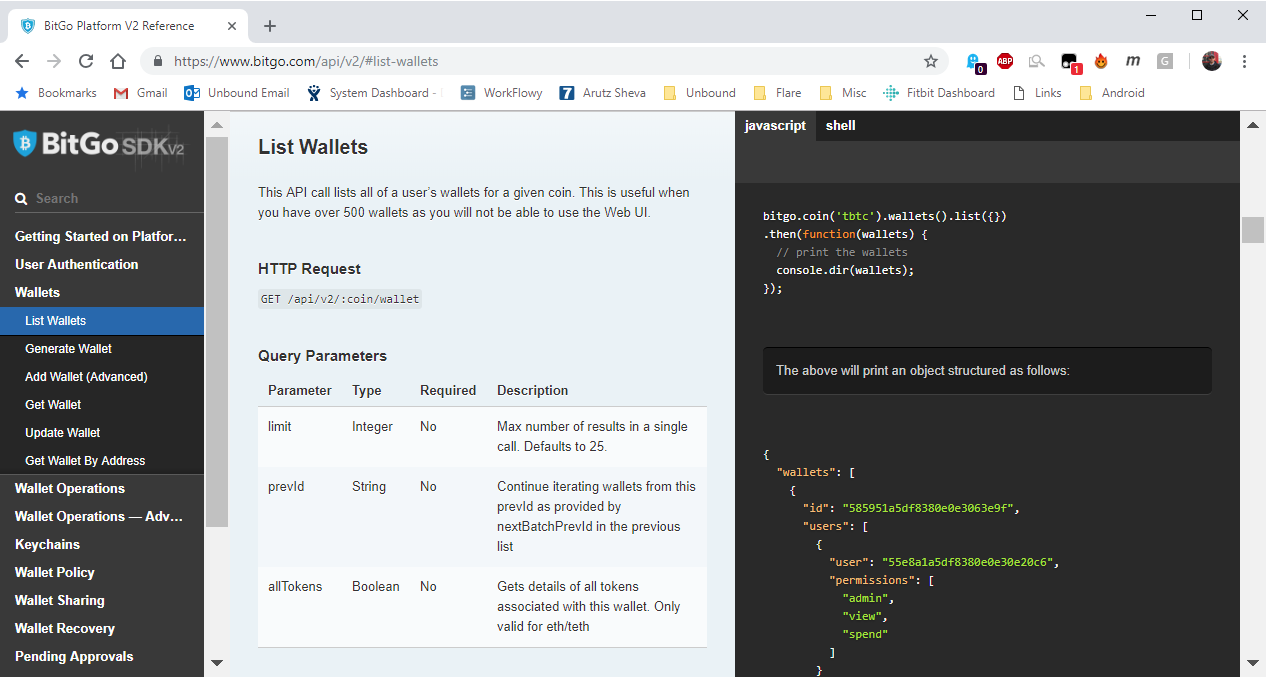
        Anyone who is documenting or using APIs has probably come across a new, slick web interface for viewing APIs, like the one in this image:

        So, what is this interface? And how do I get my APIs to look like it?
        This interface is called Slate. It provides a 3-pane view, with a TOC, the API reference, and code samples. Unfortunately, I am running a Windows machine, and I couldn’t get Slate to install.

        Continue reading “Make APIs Look Nice with Shins”