
Often I want to paste plain text, without any formatting. There is usually a menu option to do this, such as in Word by clicking the Home tab, then clicking the little arrow under Paste, then clicking the Text button. Or you can right click, then choose Paste as text. Those aren’t too bad, but if you do this action a lot you want something faster. You want a keyboard shortcut.
I found a small application called PureText that accomplishes this task. It allows you to choose whatever keyboard shortcut you want and pastes plain text in any location.
You can get PureText here: http://www.stevemiller.net/puretext/
This little app runs when Windows starts. The tray icon provides a way to access the options dialog:
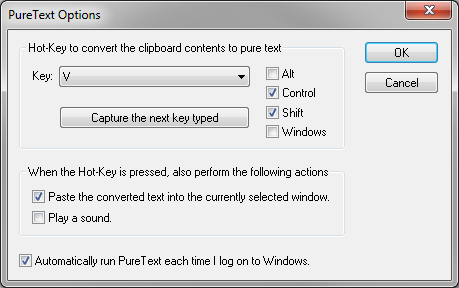
As you can see from the image, I assigned the keyboard shortcut to Ctrl-Shift-V. Now I can use Ctrl-v to paste formatted text or Ctrl-Shift-V for plain text.
Enjoy!
 Phlogtastic