Make your life easier – customize your MS Word toolbar

You can make your life a lot easier by customizing the MS Word toolbar with functions that you often use.

Here’s how.

  1. Click the dropdown arrow () in the toolbar.
  2. Select More Commands…
  3. Click Popular Commands.
  4. Select any command from the list and then click Add>>.

Add whatever commands you usually use. Note the following:

  • You can add a button to run a custom macro.
  • You can add a separator by selecting which is at the top of the list.
I usually add these commands:
  • Para Keep With Next – let’s you turn on/off the keep with next attribute.
  • Para Page Break Before – adds a page break before the current line of text.
  • Style – shows the current style and allows you to select a new style.
Reopening Old Google Chrome Tabs

I have Google Chrome (GC) configured to open whatever tabs were previously opened when the browser was closed. This setup is great since I often have 10-20 tabs open, and reopening them 1 by 1 would be a pain.

Unfortunately, what happens is that sometimes I’ll have 2 separate GC windows open, usually one of them with 20 different tabs (let’s call it A) and another with only 1 tab (called B).

A problem occurs if I close the window A first and then window B. Since GC only remembers the tabs on the last window (B) that was closed, when I restart GC it gives me the tabs from window B. Bummer.

There is another feature in GC that let’s you open a closed tab. The keyboard shortcut is Cntl-shift-Tab. When you accidentally close a tab, just type the keyboard shortcut and it reopens the closed tab.

And now for the cool part….

When you open GC, if you type Cntl-shift-Tab, it reopens a closed tab from even before you closed the browser. I my case above, when GC is restarted, window B opens. If I type Cntl-shift-Tab, it opens browser window A that was closed!

Count the Number of Words using JavaScript in Adobe Acrobat

This is the best hack that I’ve come across in the last several years.

Many times I wanted to count the number of words in a PDF document. The normal way to do this task is to save the file as a Word doc and then open it in MS Word that calculates the count. You can also upload your file to an online site that will count it (although most companies would probably frown upon sending your precious data to some random 3rd party site).

Today I stumbled across an Adobe forum thread that said that Acrobat can run JavaScript. Hmmm… And then I found another site that explains how to create a custom tool in Acrobat. Put these two together and you get a toolbar button in Adobe Acrobat to count the number of words in the doc.

Here’s how to make it work. Note that this is for Acrobat DC.

  1. Open Acrobat.
  2. Click Tools.
  3. Click Action Wizard.
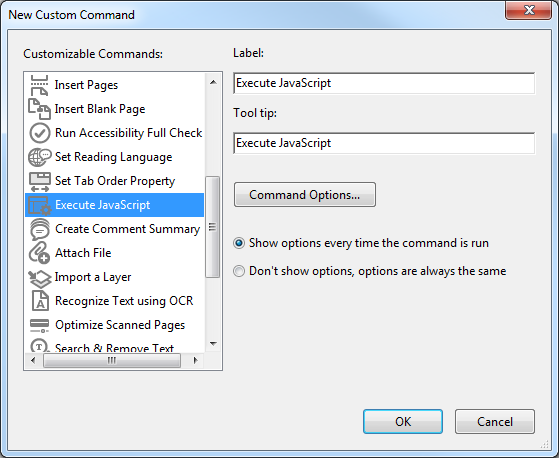
  4. In the button list under the toolbar, click New Custom Command.
    This window opens:

  5. Click Execute JavaScript.
  6. Change the Label to something useful, like “Count words in document”.
  7. Change the Tool tip to something useful, like “Counts the number of words in the current document”.
  8. Click Command Options…
  9. Paste in the following code:
    /* Count number of words in document */
    var cnt = 0;
    for (var p = 0; p < this.numPages; p++) cnt += getPageNumWords(p);
    app.alert("There are " + cnt + " words in this file.");
  10. Click OK.
  11. Click Don’t show options, options are always the same.
  12. Click OK.

You now have a custom command. All that’s left to do is make the button that calls it.

  1. Right-click in a blank part of the toolbar.
  2. Click Customize Quick Tools.
  3. Expand the Action Wizard section.
  4. Find your new command and select it.
  5. Click the Add to Toolbar button on the right side of the window.
  6. Click Save.

That’s it! You can now open any PDF and just click the button to get a word count.

[Source: KHKonsulting and Adobe]

    Remove Underscores from Filenames

    Here is a quick and dirty (very dirty) way to remove underscores from filenames:

    1. Open a terminal (like Cygwin).
    2. Change the directory to the one with the files that you want to change.
    3. Run: rename ‘_’ ‘ ‘ *; ls
    4. You may need to run the command several times until there are no more underscores left in the filenames.
    There is probably a better way to do this using a sed or awk command, but I didn’t have time to look it up.

    Get Rid of MS Office 2013 Animations

    Some people like it, but I don’t. MS Office 2013 introduces fluid animations to various actions. For example, in Excel, when you move from one cell to another the highlight box doesn’t jump, but slides to the next box.

    To get rid of all of these animations:

    1. Right click on My Computer icon on the Desktop and choose Properties option OR just hit Win+Pause
    2. In the System window click the Advanced system settings link in the left pane
    3. Click Continue button if prompted by UAC
    4. Now click Settings button under Performance section
    5. Select the Custom and un-check the option Animate controls and elements inside windows to disable animations
    6. Click OK button
    7. Click OK button in the System Properties window


    [Source: How To Code]

    Pasting Plain Text

    Often I want to paste plain text, without any formatting. There is usually a menu option to do this, such as in Word by clicking the Home tab, then clicking the little arrow under Paste, then clicking the Text button. Or you can right click, then choose Paste as text. Those aren’t too bad, but if you do this action a lot you want something faster. You want a keyboard shortcut. 

    I found a small application called PureText that accomplishes this task. It allows you to choose whatever keyboard shortcut you want and pastes plain text in any location.

    You can get PureText here: http://www.stevemiller.net/puretext/

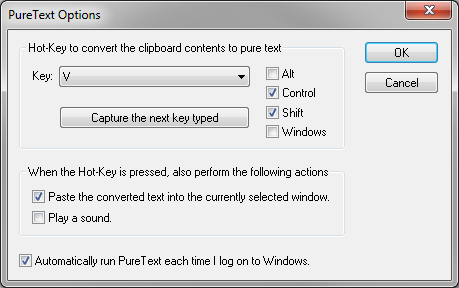
    This little app runs when Windows starts. The tray icon provides a way to access the options dialog:


    As you can see from the image, I assigned the keyboard shortcut to Ctrl-Shift-V. Now I can use Ctrl-v to paste formatted text or Ctrl-Shift-V for plain text.

    Enjoy!

    Delay Sending Emails in Outlook

    When you accidentally send an email there are several ways to prevent it from being delivered.

    If you are using Outlook you can recall the message.
    If you are using Gmail you can turn on delayed sending and “undo” the send.

    But if you are using Outlook as a frontend for Gmail what can you do?

    One solution is to apply a delay before sending all emails. This can be accomplished by the following procedure:

    1. In Outlook, click Rules -> Manage Rules & Alerts.
    2. Click New Rule.
    3. Click Apply rule on message I send.
    4. Click Next.
    5. Click Yes in the window that asks if you want to apply it to all messages.
    6. Check the box next to defer delivery by a number of minutes.
    7. Click on a number of in the bottom window pane.
    8. Set the number of minutes that you want to delay by, e.g. 1 minutes.
    9. Click OK.
    10. Click Next.
    11. Give the rule a name, such as “Stop delivering stupid emails”.
    12. Click Finish.
    All emails that you send are now delayed by 1 minute. If you realize your mistake you can go into the Outbox and delete the email.

    [Source: HowToGeek]

    Printing Comments for Adobe PDFs

    For those of you who have Adobe Acrobat X, there is a nice way to create a PDF showing all of the comments in the document. The result uses a landscape orientation with the original page on the left side and a list of the comments on the right side. It also has arrows that connect the comments to the text in the original document.

    How to create a document showing all comments:

    1. Click Comment on the top-right.
    2. If the comment list is not open, then click Comments List.
    3. On the top-right of the Comments List pane, select Options –> Create Comment Summary.
    4. In the window that opens, select the radio button next to Document and comments with connector lines on single pages.
    5. Click Creat Comment Summary.
    6. This creates a new PDF document that shows the comments.
    7. Save the document.

    [Source Adobe]

    Get PDFs with non-Standard Fonts and Apple Preview to Display Correctly

    A project that I am working on uses non-standard fonts in the documents (in this case Myriad Pro). The documents are in Microsoft Word and then saved as PDFs for distribution. After sending out one document I got feedback that users on Apple computers did not see any text when they opened the PDF with Preview. That’s bad!
    I looked around for a solution and found that Preview does not work well with Open Type fonts. The solution (at least until Apple fixes their OS) is to embed the fonts in the PDF.
    If you have Adobe Acrobat, you can use this procedure to setup PDF creation:
    1.    You must have Adobe Acrobat installed (not just Adobe Reader)
    2.    Open the Word file


    3.    Select the Acrobat menu
    4.    Click Preferences
    5.    Click the Settings tab
    6.    Click Advanced settings…
    7.    Click on Fonts
    8.    There is a list of fonts under “Font Source”. Scroll down to MyriadPro and select all of the MyriadPro fonts.
    9.    Click on the Add button next to the Always Embed.
    10.    Click OK.
    11.    It prompts you to save your settings for future use. Give the settings a name and save them.
    12.    Click OK.
    13.    Now you can use Create PDF in the Acrobat window to generate a PDF that has the MyriadPro fonts embedded in it.

    Once this is all setup, you can use this procedure to create the PDF:
    1. Open the Word file
    2. Select Acrobat > Preferences
    3. Check that the saved settings created in the previous procedure are selected
    4. Click OK
    5. Select Acrobat > Create PDF
    6. Select Options…
    7. Check the desired options, such as create bookmarks and then save.
    Using these procedures you get a PDF with the fonts embedded which fixes the Preview problem on Apple computers.

    Powerpoint: Add Connection Point to Shape

    Routing connections in Powerpoint works well only when the ends of the connector are attached to connection points. Connection points are usually only on the corners/vertices of the shapes and you often want to connect to a different location.
    You can add your own connection points by doing the following:
    1. Click the shape that you want to add connection points to.
    2. Right click > Edit Points.
    3. Hover the mouse over the place where you want to create the connector. The mouse will change into cross hairs.
    4. Left click one time. DO NOT move the mouse.
    5. Right click > Add point.
    You now have a new connector at that location.
    [Source Indezine]