
Refer to this page for help with the auto-numbering in Flare:
Or just use this in your CSS:
Refer to this page for help with the auto-numbering in Flare:
I’ve jumped onto the MadCap Flare bandwagon. There’s sure to be numerous posts about tips for it.
Helpful links:
Do you need to do any of the following tasks in your PDF files:
How can you accomplish these tasks if you don’t have Adobe Acrobat?
Just install Debenu PDF Tools. They have a free version that installs a Windows menu command with these functions and more.
Note that for each change that you make it creates a new PDF with the changes.
[Source: gHacks]
I recently encountered text that had shading on it that was difficult to remove. It looked like this example:

FYI: The text above was generated with the lorem shortcut.
It tried to remove it using the Text Highlight Color tool, but it didn’t remove it.
You might have ugly lines in your PDFs, such as these:
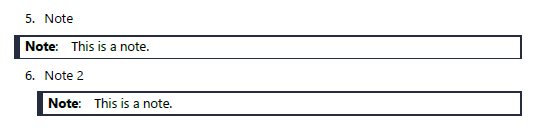
The outline on 3 sides of the Note style are 1/2 point, so they should be nice and thin. (Note that the left side is thick by design.) Unfortunately, Adobe makes the lines look strange, and even different at each level of zoom.
If you ever wanted to kill a process from the command line, there’s an easy way to do it.
First, show what processes are running using the tasklist command:
C:>tasklist
Second, use Taskkill to kill it by process name or process ID:
C:>Taskkill /IM firefox.exe /F
C:>Taskkill /PID 26356 /F
The /F flag forces the process to quit.
[Source: Tweaks]
This may or may not have been written by George Carlin. Since there’s no profanity, he probably didn’t write it. But, it’s still funny.
George Carlin: The English Plurals
We’ll begin with a box, and the plural is boxes,
But the plural of ox becomes oxen, not oxes;
One fowl is a goose, but two are called geese,
Yet the plural of moose should never be meese;
You may find a lone mouse or a nest full of mice,
Yet the plural of house is houses, not hice.
Technical Writers work with just about every department within a company. They get a feature description from a Product Manager, an implementation detail from R&D, and the terminology spin from Marketing. They may also deal with Support, Deployment, and whatever other deparments exist in their companies.
When dealing with all these different groups, especially when working in a large company, it helps to understand how the groups work together. This knowledge helps the TW more efficiently deal with his or her tasks, avoid hitting management walls, and know who they need to talk to. Unfortunately, it is only gained after working for the company for a long time.
Some illustrations, like the one below, of different org types were posted over at Bonker’s World.

Which one is your current company most like?
[Source: Bonker’s World]
You can make your life a lot easier by customizing the MS Word toolbar with functions that you often use.
Here’s how.
 ) in the toolbar.
Add whatever commands you usually use. Note the following:
I have Google Chrome (GC) configured to open whatever tabs were previously opened when the browser was closed. This setup is great since I often have 10-20 tabs open, and reopening them 1 by 1 would be a pain.
Unfortunately, what happens is that sometimes I’ll have 2 separate GC windows open, usually one of them with 20 different tabs (let’s call it A) and another with only 1 tab (called B).
A problem occurs if I close the window A first and then window B. Since GC only remembers the tabs on the last window (B) that was closed, when I restart GC it gives me the tabs from window B. Bummer.
There is another feature in GC that let’s you open a closed tab. The keyboard shortcut is Cntl-shift-Tab. When you accidentally close a tab, just type the keyboard shortcut and it reopens the closed tab.
And now for the cool part….
When you open GC, if you type Cntl-shift-Tab, it reopens a closed tab from even before you closed the browser. I my case above, when GC is restarted, window B opens. If I type Cntl-shift-Tab, it opens browser window A that was closed!
 Phlogtastic